Keypad search for Android: the apps and contacts on this phone, a few taps away
Type a few digits on a phone keypad to find and open apps and contacts.
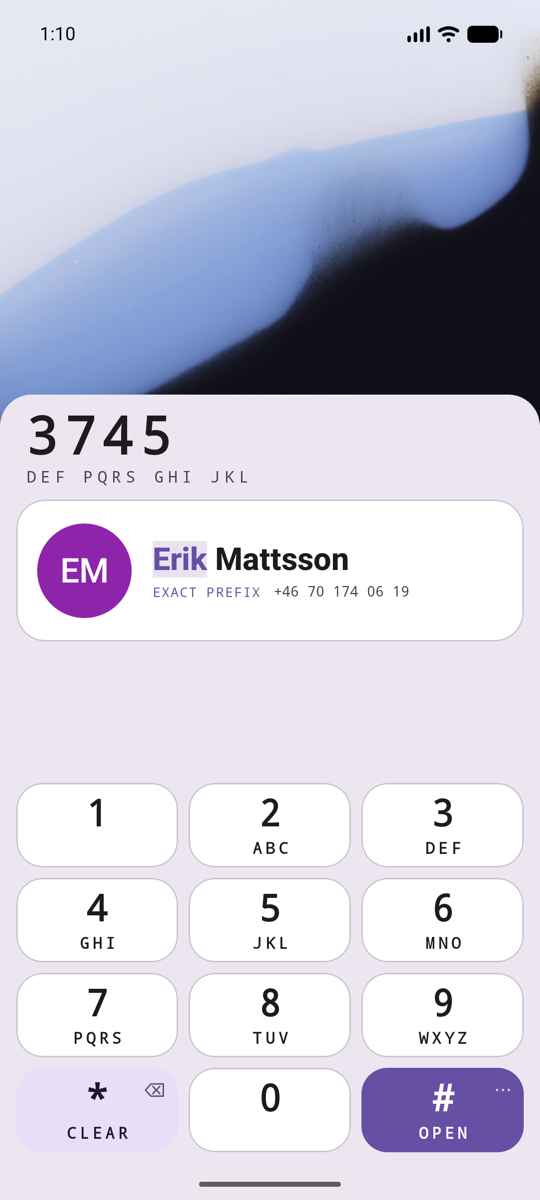
The digits spell letters, as they always did on a phone keypad, so if you remember typing words on one, you already know Tapfind. Type 8‑2‑7, the digits of T‑A‑P, and there is Tapfind. Type 3‑7‑4‑5 and there is Erik. The digits of a name never change, so your thumb learns them.
Twelve keys instead of a hunt through the app drawer
Pages of icons. Folders inside folders. An app drawer that scrolls. A search box that wants the whole keyboard. Tapfind answers all of it with the twelve keys every phone once had, big and always the same.
Each digit narrows the list. After two or three, the list is short. A tap opens the one you want, and # opens the first. You never look for an icon. You look at the keys under your thumb.
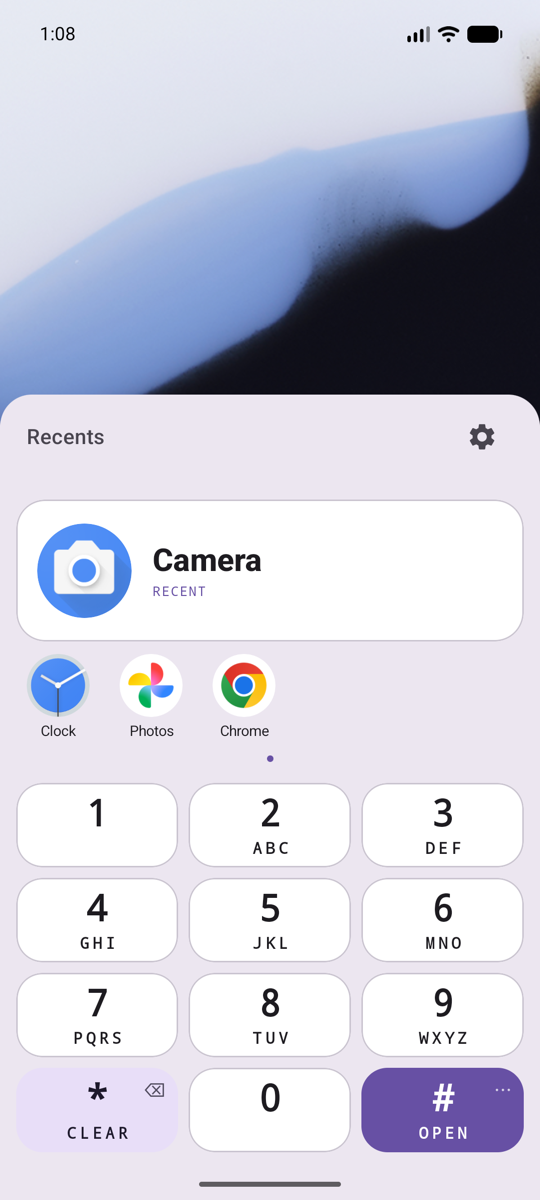
Tapfind learns what you open. With nothing typed it shows the Recents, so the app you reach for most is often one tap away before you type anything.
With nothing typed, Tapfind shows the Recents.
Make it the way you open everything
Tapfind is not a launcher you must switch to. It opens as a sheet over the wallpaper, from inside any app, beside the launcher this phone already has. A tap outside the sheet closes it. Put it where your hand already goes.
1The assistant gesture
Choose Tapfind as the digital assistant app on this phone. The gesture that calls the assistant then opens the keypad. It is often a press and hold on the Home button, a press and hold on the power button, or a swipe in from a bottom corner of the screen. This phone may offer only some of these. The assistant you had stops answering its wake word while Tapfind holds the role. Set it back and the wake word returns.
2A gesture on the home screen
If this phone's launcher can put an app on a gesture, such as a swipe up on the home screen, put Tapfind there. Every app is then one swipe and a few digits away, and the home screen can go empty.
3One icon, or a tile
Keep one icon on the home screen, Tapfind, and let it reach the rest. Or add the Tapfind tile to Quick Settings, then pull the shade down and tap it.
What Tapfind finds
Apps
Tapfind finds every app this phone can open from its launcher. It needs no permission for this. Type the first letters of a name as digits and the list narrows to the apps that fit. A long press on an app offers more: App info, its Play Store page, Add to home screen where this phone's launcher allows it, and Uninstall for an app that did not come with the phone.
Tapfind finds an app from a few digits.
People
Turn Contacts on in Settings and Tapfind finds people by name or number. It explains what it reads first, then Android asks for the permission. A tap opens the dialer with the number. Tapfind never calls by itself. A long press offers more, such as Message, Open contact and Edit contact.
Contacts are read on this phone each time Tapfind starts and are never saved to a file. Type a whole phone number that fits no name, and # opens the dialer with it.
A contact opens the dialer with the number.
Tasks inside apps
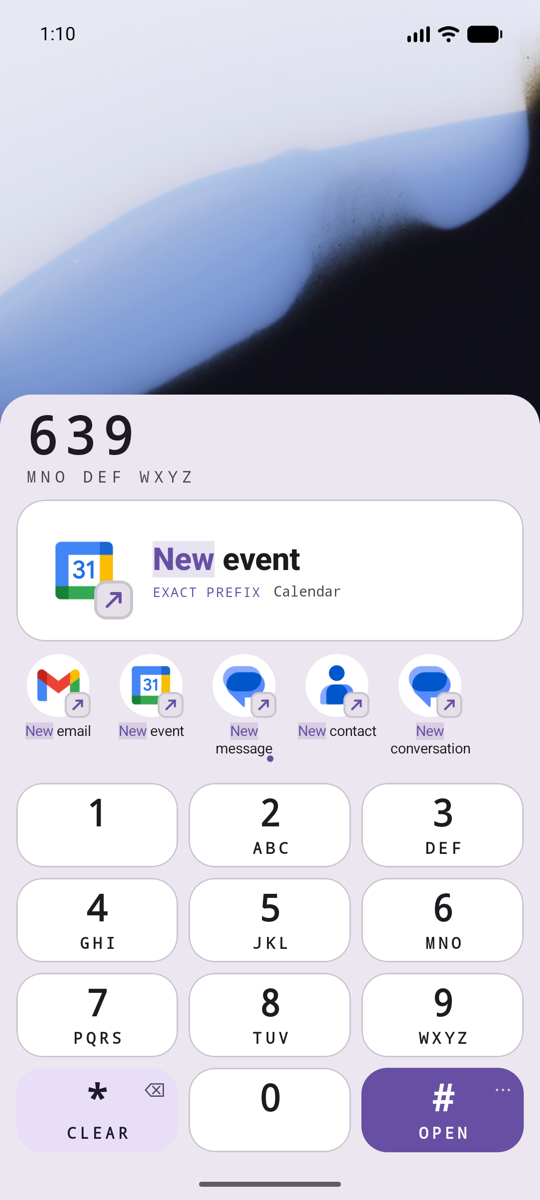
With Pro, Tapfind also finds tasks inside apps. It reads the tasks apps declare, and adds thirty of its own: a new message, a new event, a new contact, the Wi-Fi and Bluetooth settings, Battery usage, and twenty places in this phone's settings, from Display to Accounts. Each is offered only where this phone has it. Type 6‑3‑9 and New event is in the list.
With Pro, you can find tasks inside apps, such as a new message.
Made for one hand
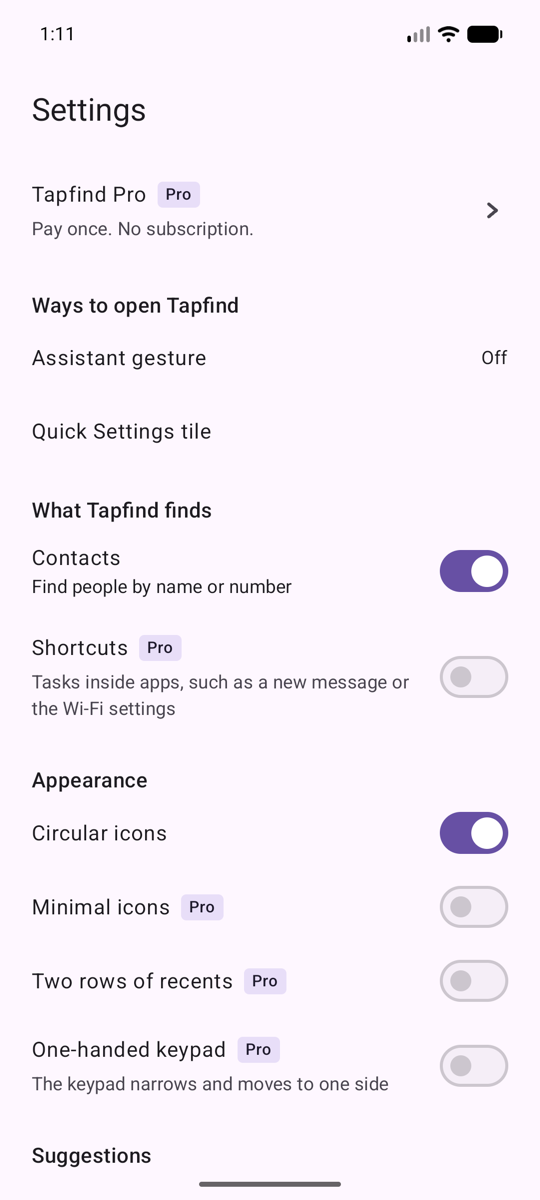
With Pro, you can narrow the keypad to one side, left or right, and set how tall it stands. The one-handed keypad is a switch in Settings, off until you turn it on. A second switch, Two rows of recents, shows twice as many recents and results on each page.
You can draw icons as circles or keep the apps' own. With Pro, you can turn on Minimal icons, one color that follows this phone's theme, on Android 13 and later. Light and dark follow the phone.
With Pro, you can narrow the keypad to one side.
Nothing leaves this phone
Tapfind has no server.
Tapfind has no account and no sign-in.
What Tapfind reads and remembers stays on this phone.
There are no ads, no analytics and no tracking of any kind. Tapfind tells Android to leave its files out of cloud backup and out of phone-to-phone transfer. Your settings can be saved to a file you choose, and loaded on this phone or another, only by your own tap.
Pay once to add these features. There is no subscription. Every other feature costs nothing, now and later.
Shortcuts
Find tasks inside apps, such as a new message or the Wi-Fi settings. A settings task is offered only where this phone has that screen
Minimal icons
Icons in one color that follows this phone's theme. Android 13 and later
Two rows of recents
Show twice as many recents and results on each page.
One-handed keypad
Narrow the keypad to one side, and set how tall it stands.
Suggest by time of day
Put first the apps you open at this time of day and week. It never leaves this phone.
Hide from results
Remove apps and contacts from every result. Get them back in Settings.
Before you pay, the Tapfind Pro screen in Settings lists every Pro feature and says which ones this phone cannot do. Each Pro switch you can see is marked Pro, and a tap on it tells what Pro is. Google Play takes the payment. Tapfind never sees your payment details.
Tapfind Pro. Pay once. No subscription.
Tapfind installs on Android 11 and later
A feature this phone cannot run is left out, and the Tapfind Pro screen says so before you pay.